Editing a Shopify order after purchase, and limits

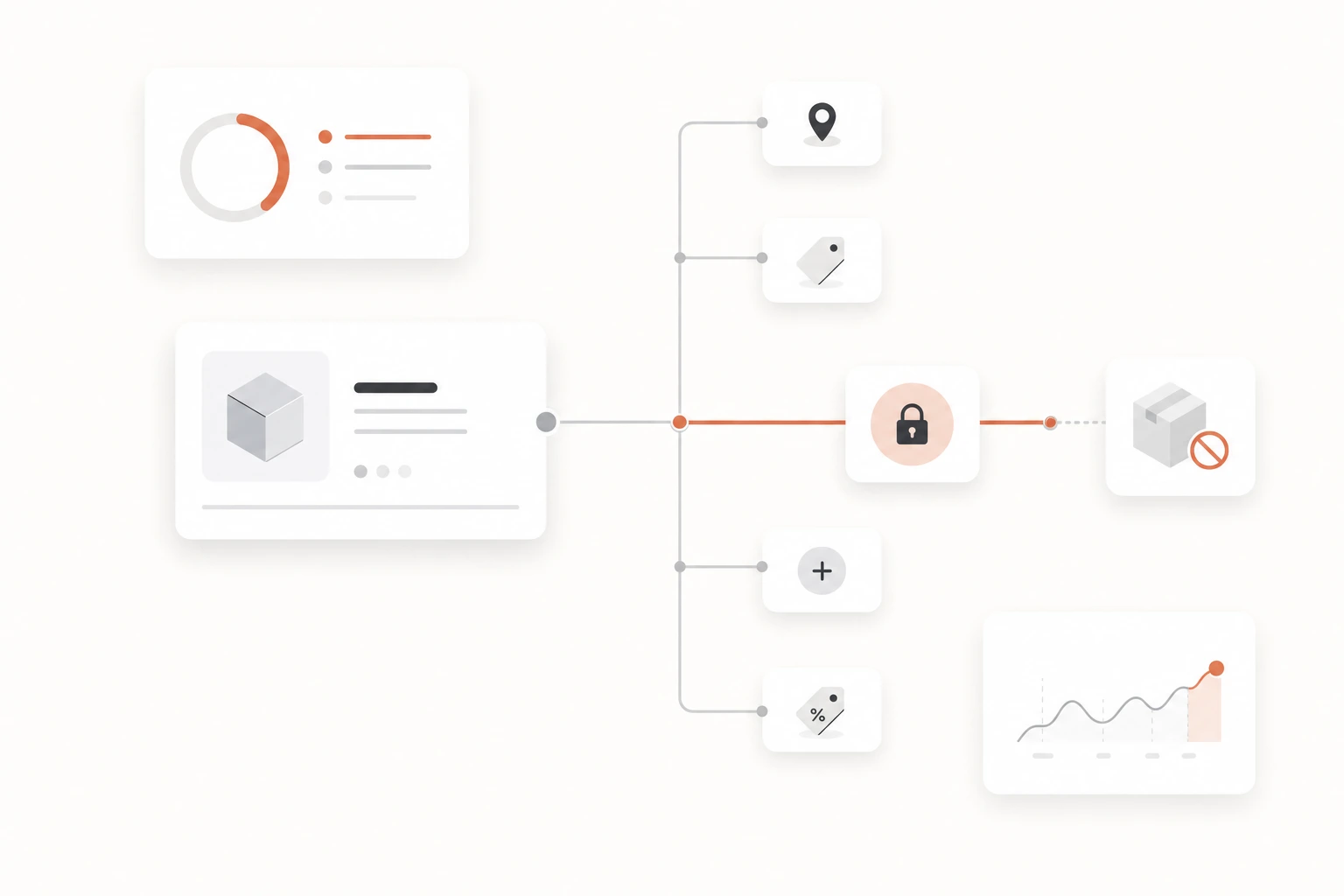
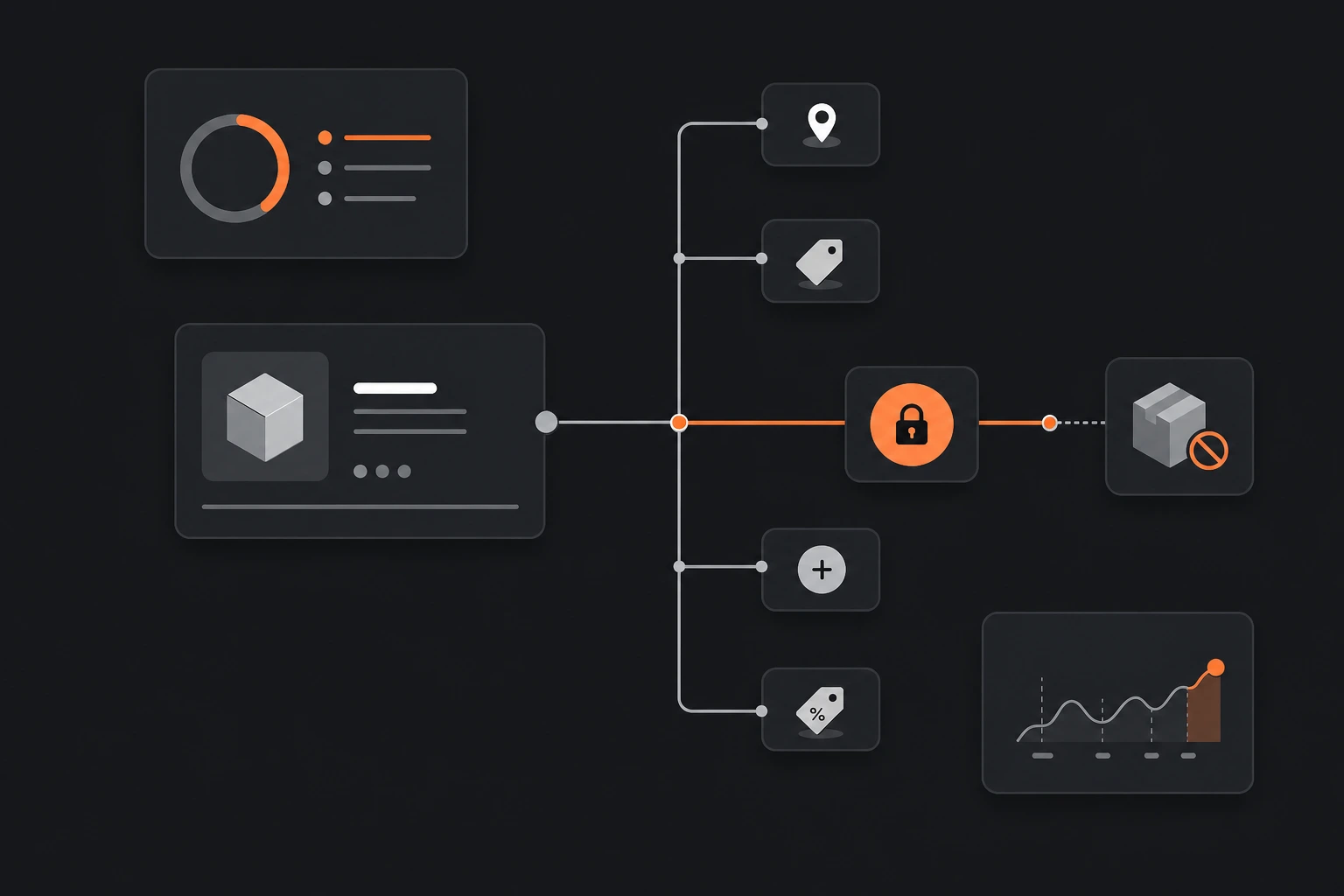
A customer emails an hour after checkout. Wrong apartment number, or they meant to order the large, or they forgot to add the matching item. On Shopify you can fix most of that from the admin, but only inside a specific window, and only you can do it. The person who placed the order cannot change it themselves.
Here is the short version, checked against Shopify's own help documentation on August 6, 2026. A merchant can edit an unfulfilled order from the admin: add products, change quantities, remove items, adjust shipping fees, apply discounts, and update the shipping address. Once an item is fulfilled, or the edit runs into a payment that is already captured or still pending, some of those changes stop being possible and become a return or a refund instead.
Can you edit a Shopify order after it is placed?
Yes, if you are the merchant and the order is unfulfilled. Shopify's native order editing lets you adjust an order after checkout without cancelling and rebuilding it. You reach it from Orders, open the order, and click Edit.
What you cannot do is hand that to the shopper. Nothing in the native flow lets a customer open their own order and change it, so every path below starts as a support message. That is the detail most "can I edit my order" searches are really running into.
What you can change, by type
The change you need decides whether Shopify can help and how. Here is every common post-purchase edit, what the admin lets a merchant do natively, and whether the customer can do any of it without you.
| Change | Native merchant path in the admin | Customer self-service |
|---|---|---|
| Shipping address | Open the order, Customer section, Edit shipping details | No |
| Add an item | Edit, + Add product, then invoice or charge the balance | No |
| Change quantity | Edit, adjust the quantity on an unfulfilled line | No |
| Swap a variant or size | Edit, remove the old line, add the new one (no direct swap) | No |
| Apply or remove a discount | Edit, add a manual discount or remove an existing one | No |
| Billing address | Not editable once the order is placed | No |
Two rows are worth calling out. A variant swap is not a swap: Shopify's documentation is explicit that "if you want to swap items, then you need to remove the unwanted item and add a new item," so a medium becoming a large is a remove-and-add that re-prices the line. And the billing address cannot be changed at all once the order exists. Only the shipping address can.
That last column is the whole story. Every native answer is No. A self-service order editing window is what changes it: the customer opens their confirmation, fixes the address or the size inside a time-boxed window you control, and the order updates without a message reaching your inbox. It is free to run, and it removes the round-trip that otherwise ends in a cancellation or a chargeback that costs more than the refund would have.
How to edit an order in the Shopify admin
Open the order and click Edit
From your Shopify admin, go to Orders, open the order you need to change, and click Edit. Editing works on unfulfilled items. A line that is already fulfilled cannot be removed or re-quantified.
Add, remove, or re-quantify the items
Click + Add product to search for and add something from your catalog, or + Add custom item for something that is not. Change a number in the Quantity column to adjust it, or hover a line and click the × to remove it. Removed items are automatically restocked to their original location unless you turn that off. To change a size or variant, remove the old line and add the new one.
Update the shipping address separately
Address changes are not part of the item editor. In the Customer section of the order, click Edit shipping details and update it there. The billing address stays locked.
Settle the new balance
The order total updates and shows whether you owe the customer a refund or they owe you a balance. If it went up, email an invoice with a checkout link or charge the payment method on file. If it went down, issue the refund. A customer paying an added balance through the new checkout loses accelerated options like one-click Shop Pay.
Review before you save
Shipping methods and rates are not recalculated when you edit, and taxes recalculate only if the shipping address changed, so check the totals yourself before you update the order.
Changing a shipping address after the order
This is the most-searched version of the problem, usually typed as "customer entered wrong address" or "change delivery address after ordering." If the order is unfulfilled, the fix is quick: Customer section, Edit shipping details, save. Taxes recalculate to the new destination. Shipping rates do not.
The honest limit here is timing, not tooling. Editing the address in the admin updates the record, but it does not reroute a parcel a carrier already has. If the label is printed and the package is moving, the corrected address in Shopify changes nothing physical, and the order is on its way to the wrong place. That is exactly how a mistyped address becomes a product not received chargeback on Shopify: the customer never got it, the tracking eventually says delivered, and the bank sides with the cardholder. Catch the address before fulfillment, or you are into reship-and-absorb-the-cost territory.
Where native editing runs out
Native order editing is built for the pre-fulfillment window and for staff. Push past either boundary and it stops.
Once items are fulfilled. You can edit unfulfilled items, but you cannot remove a fulfilled item or change its quantity. A fully fulfilled order is no longer an edit, it is a return or an exchange, with its own refund and restock.
Once the money is settled or stuck. An order in Pending payment status may block edits to items and discounts, and orders paid with Shop Pay Installments cannot be edited at all. Collecting an added balance also strips the accelerated checkout the customer used the first time.
And always, the customer is locked out. The gap that generates most of these searches is not a missing admin feature. It is that the person who spotted the mistake cannot be the one to fix it. Handing that window to the customer is what keeps a wrong size or a wrong street from turning into a support thread, a cancellation, or a dispute, which is the cheapest way to prevent Shopify chargebacks before the bank gets involved.
Frequently asked questions
Can a customer edit their own Shopify order after purchase?
Not through Shopify's native tools. Order editing is a staff action in the admin or the Shopify app, so a customer who wants to change an address, quantity, or size has to contact the merchant, who then makes the edit while the order is still unfulfilled. A self-service edit window that lets the customer make the change directly is a separate capability an app adds, not something built into Shopify checkout.
How do I change the shipping address on a Shopify order?
Open the order in your Shopify admin, and in the Customer section click Edit shipping details, then save the new address. This works while the order is unfulfilled. The billing address cannot be changed once the order is placed, and updating the shipping address does not reroute a package a carrier has already picked up.
Can you edit a Shopify order after it has been fulfilled?
Not the fulfilled items. You can edit unfulfilled items on an order, but you cannot remove a fulfilled item or change its quantity, so a fully fulfilled order becomes a return or exchange rather than an edit. If only part of the order shipped, the still-unfulfilled lines can be edited.
How do I swap a size or variant on an existing order?
Shopify has no direct swap. In the order editor you remove the unwanted line and add the correct variant as a new line, which re-prices that item. It works on unfulfilled items only, and the total updates so you either refund a difference or collect a balance from the customer.
The test I'd run: pull your last month of support tickets and count how many are "change my address," "wrong size," or "add one more." Each one is a change Shopify lets you make in about a minute, and none of them needed to reach a person. That count is the size of the queue a self-service edit window would erase, and the number of quiet near-cancellations it would prevent.