Skills library Coming soon
Free, curated agent skills that make your AI agent an ecommerce expert.
Ask about orders, returns, and analytics in plain English and act on the answers without leaving the chat. Connect to Claude, ChatGPT, or any agent that supports MCP in just a few clicks.
Your AI agent can answer questions with live data from your Redo account and even take action when you ask. Here are a few prompts to get you started.
Model Context Protocol is like a user interface for your AI agent. It’s an industry standard for how software and agents communicate. Our MCP server enables ChatGPT, Claude, or any other agent to read your Redo data and act on your behalf in a secure way.
Which AI agent do you use?
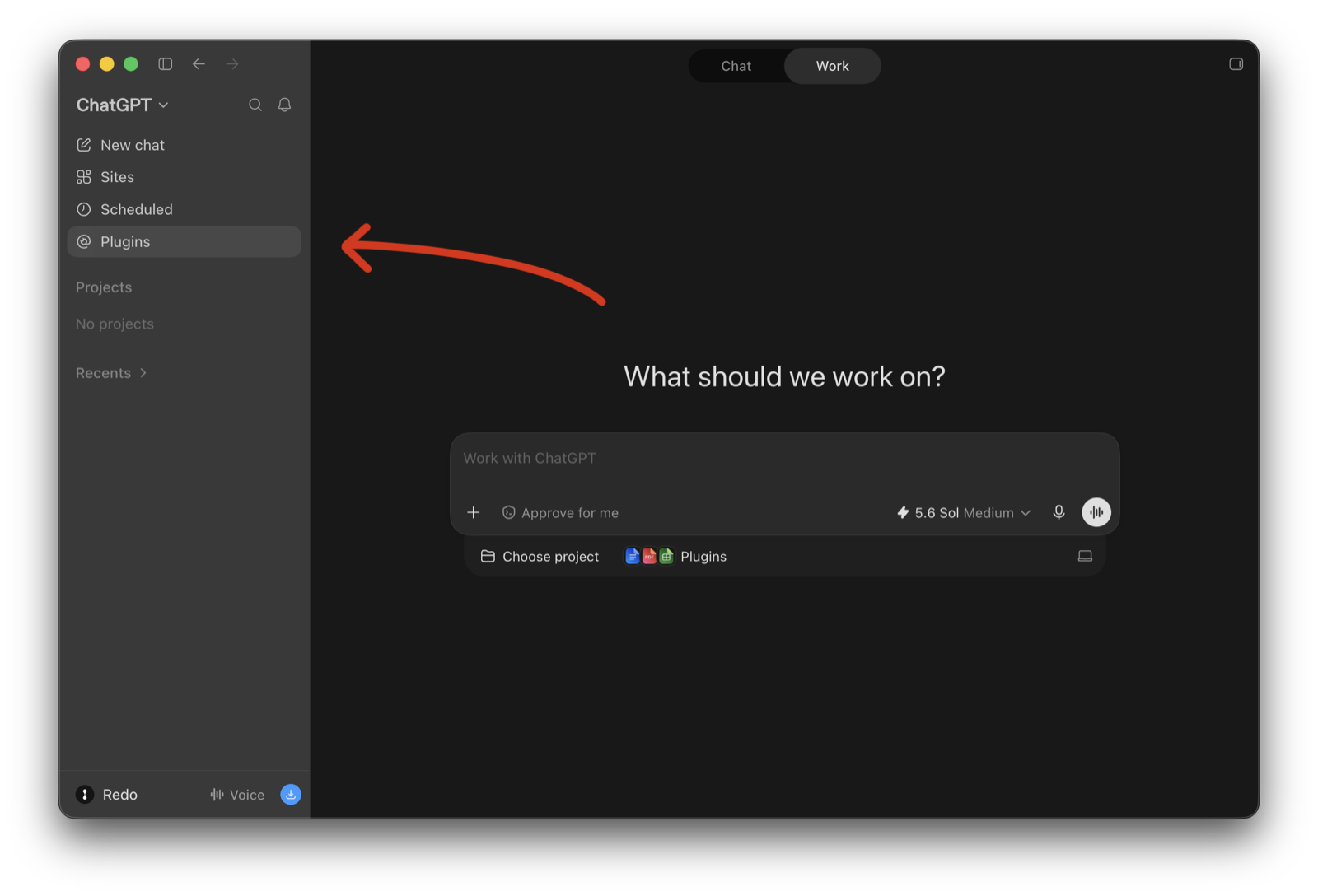
ChatGPT · Step 1 of 4
In ChatGPT’s sidebar, open Plugins.
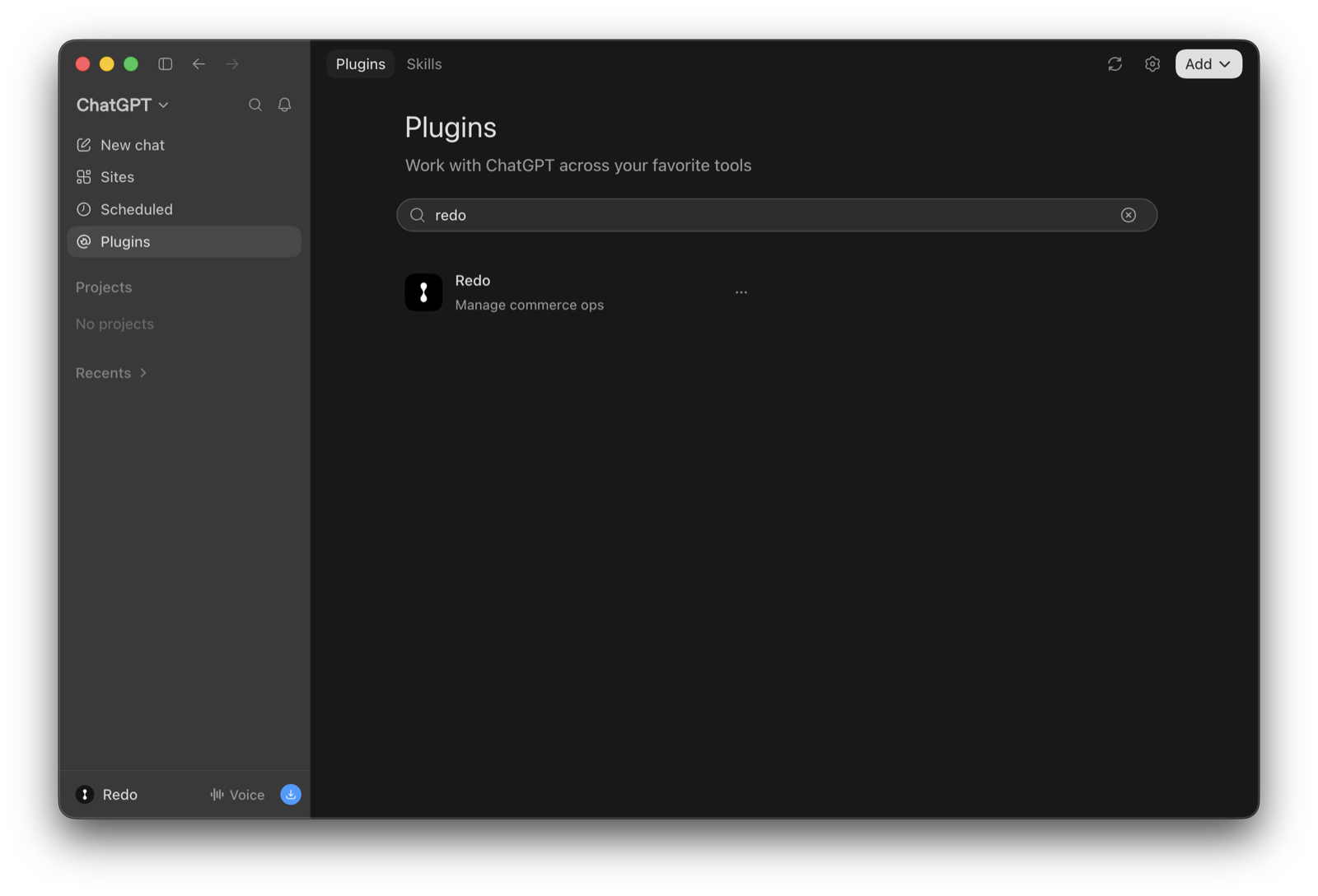
ChatGPT · Step 2 of 4
Search for Redo and click Install.
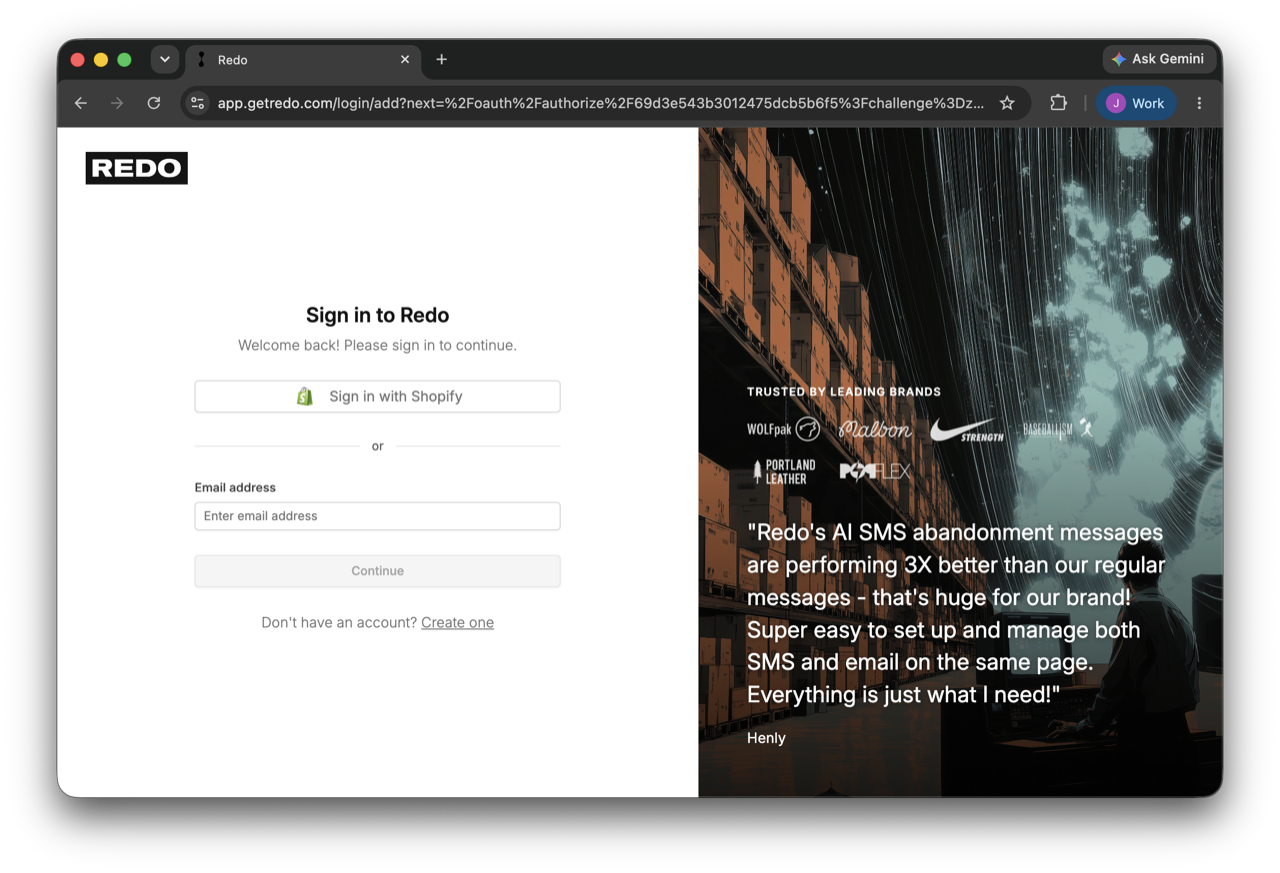
ChatGPT · Step 3 of 4
Your browser opens the Redo sign-in automatically. Log in the way you would to the Redo app, and you’re connected.
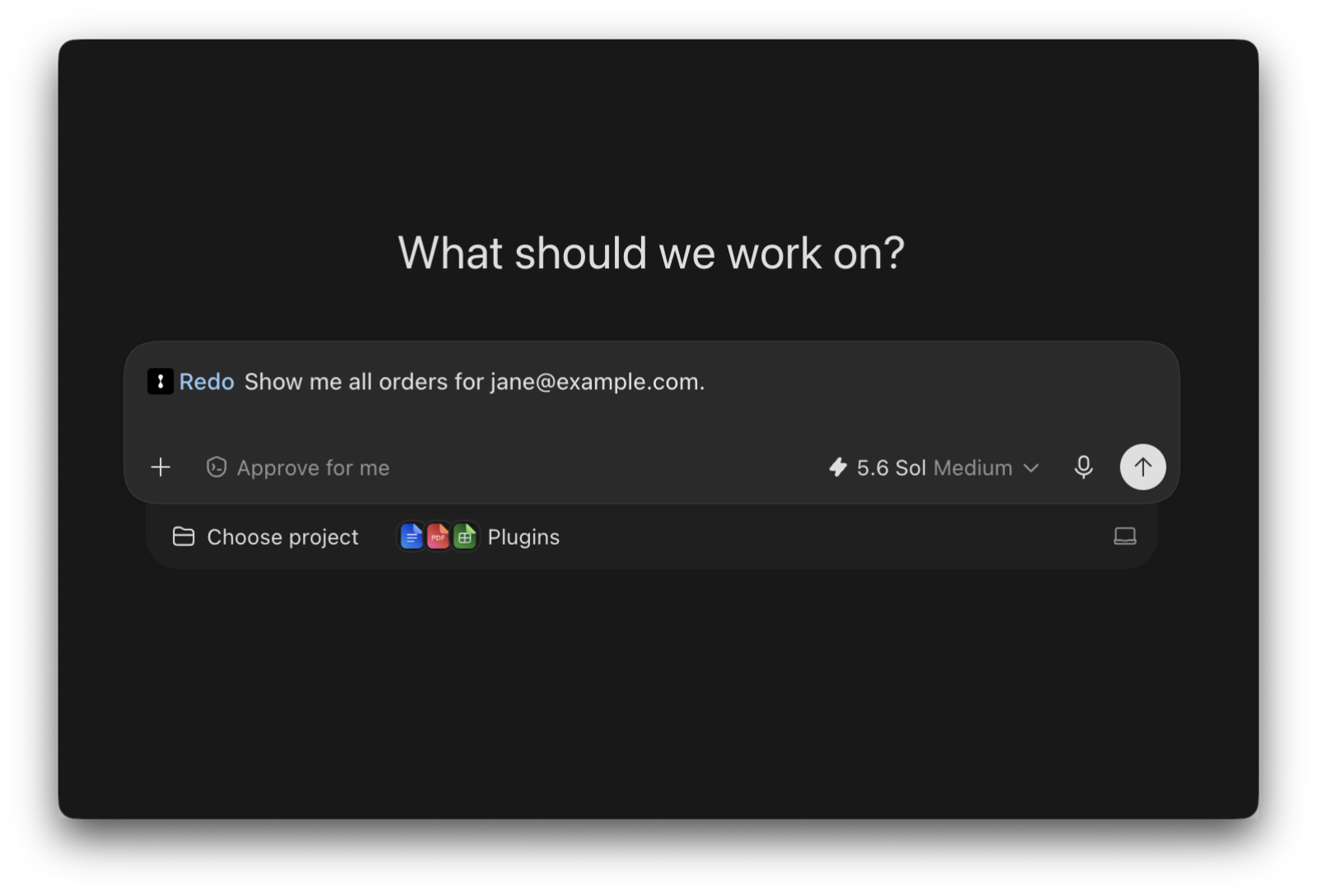
ChatGPT · Step 4 of 4
Type @redo in the composer to bring Redo into the chat, then ask away — try “Show me all orders for jane@example.com.”
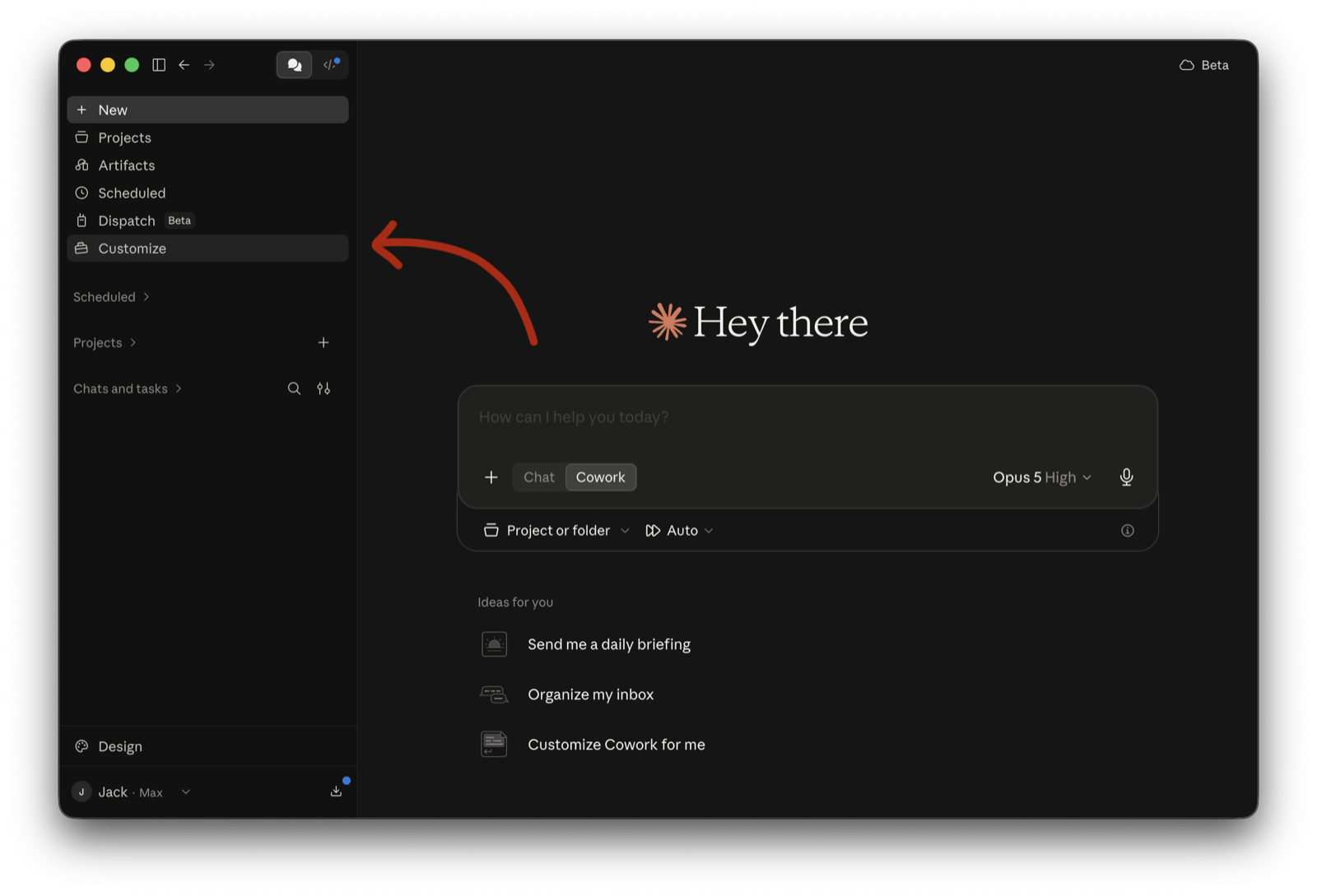
Claude · Step 1 of 5
In Claude’s sidebar, open Customize.
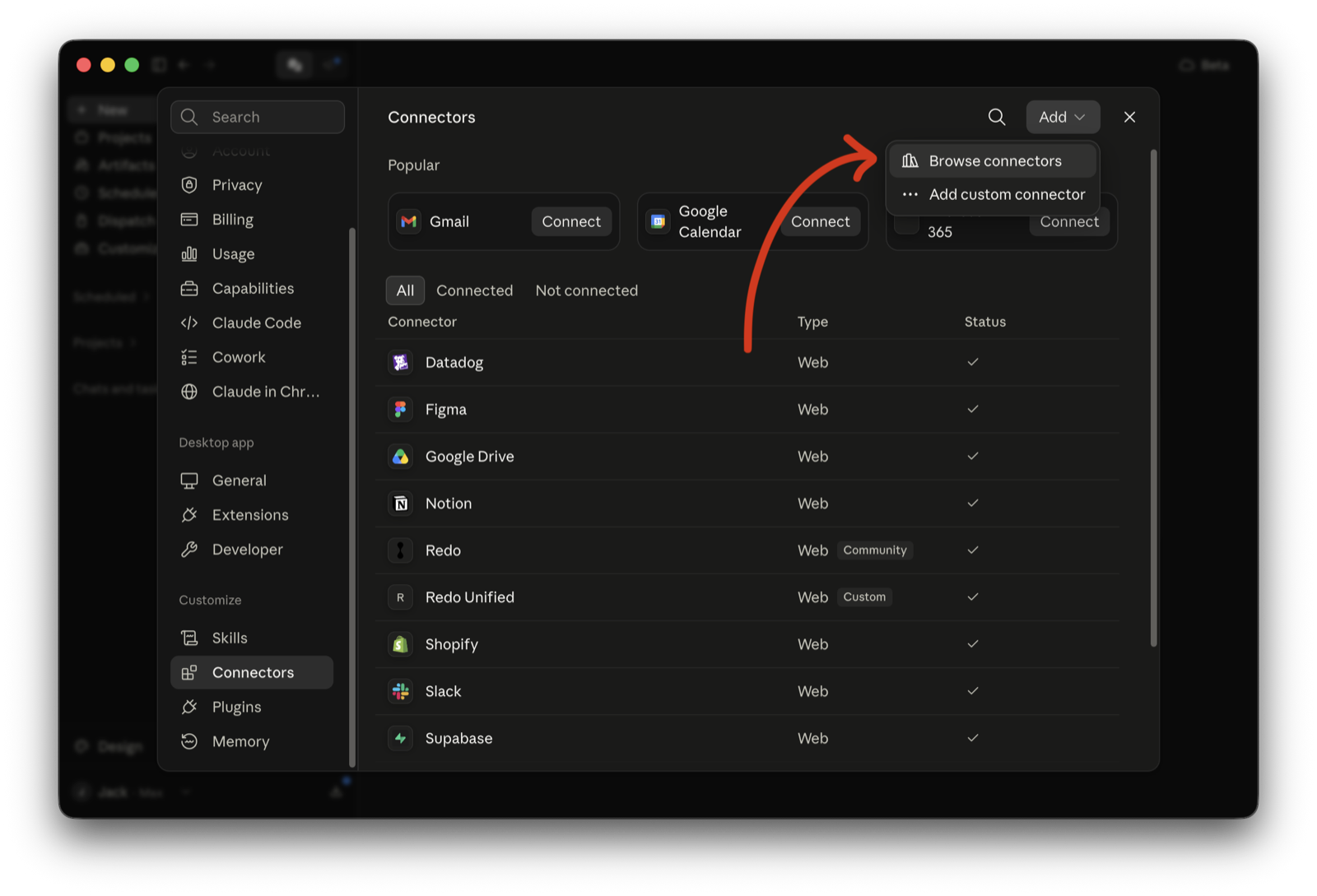
Claude · Step 2 of 5
Under Customize, open Connectors, click Add, and choose Browse connectors.
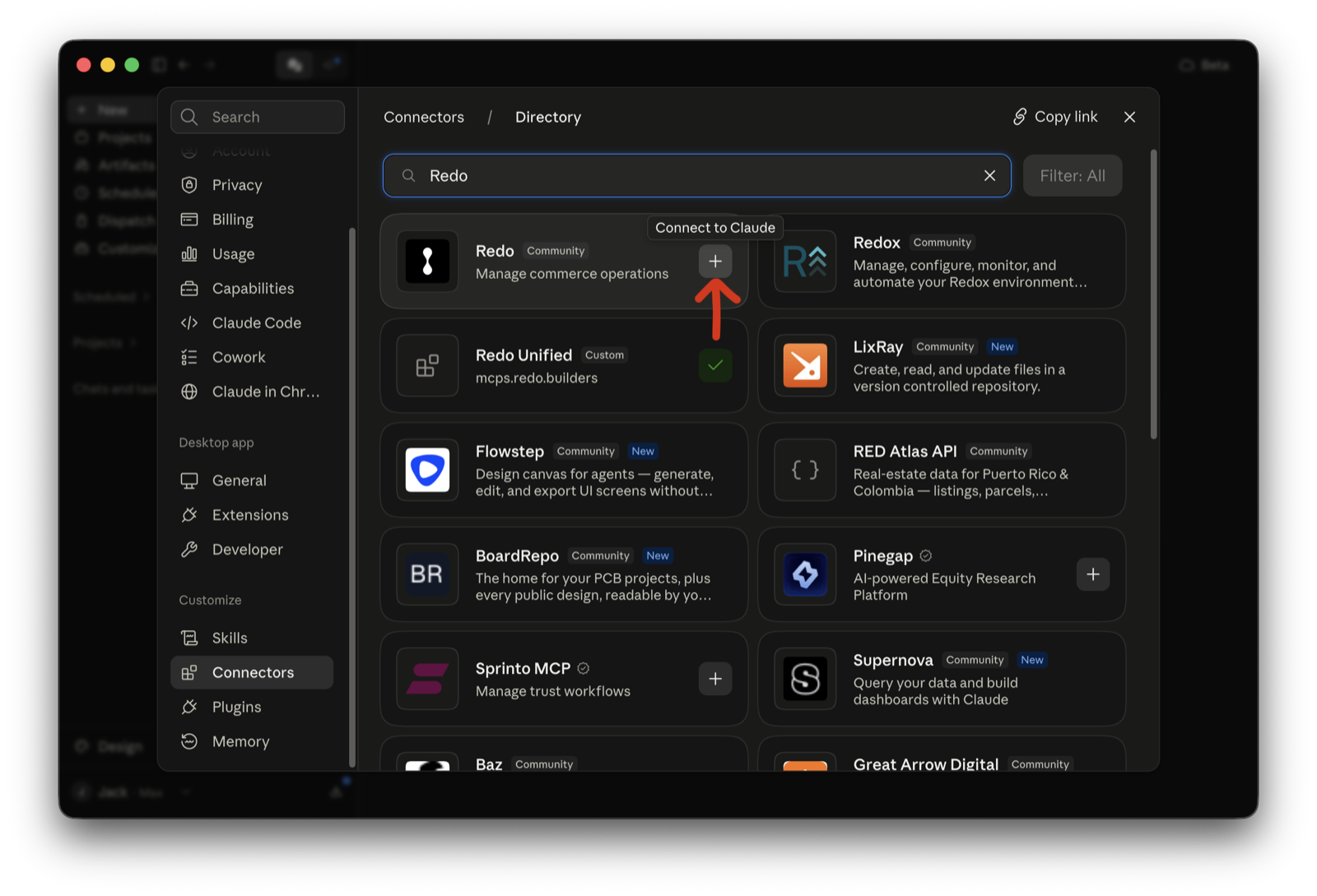
Claude · Step 3 of 5
Search the directory for Redo and click + to connect it to Claude.
Claude · Step 4 of 5
Your browser opens the Redo sign-in automatically. Log in the way you would to the Redo app, and you’re connected.
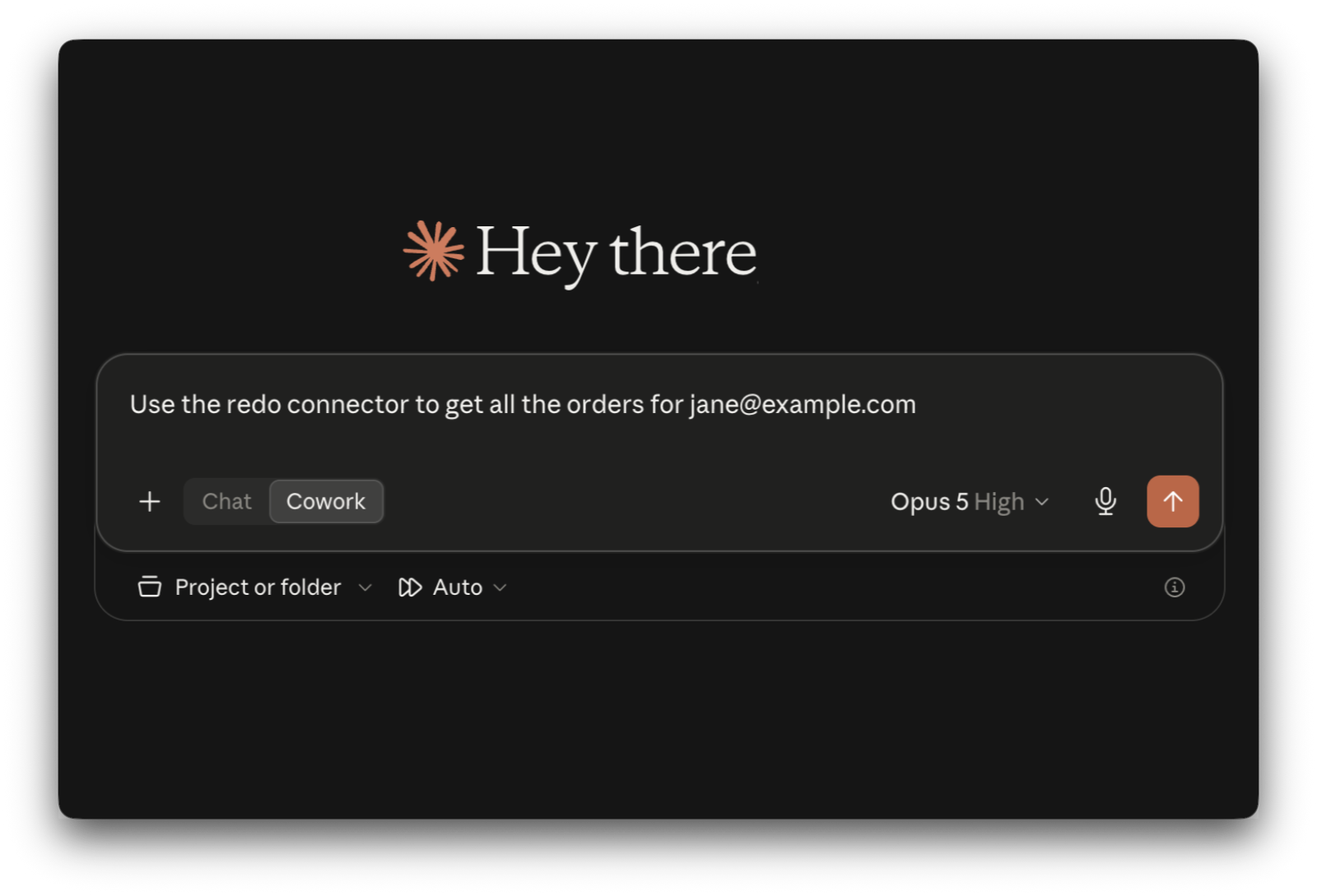
Claude · Step 5 of 5
Ask Claude to use the Redo connector — try “Use the redo connector to get all the orders for jane@example.com.”
Other · Step 1 of 1
In your tool’s MCP or connector settings, add a new server with this URL, then sign in to Redo when it asks:
https://mcp.getredo.com/mcp
Don’t see yours? Redo keeps an allowlist of tools that can
connect.
Email support@getredo.com
and we’ll review it.
Free, curated agent skills that make your AI agent an ecommerce expert.
Every tool the server offers with descriptions and permissions.

By clicking Submit, I agree to receive promotional messages from Redo via email, text, or phone. I can update preferences via email link or by texting STOP. Reply HELP for support. Msg & data rates may apply, frequency of message varies.